
The product focuses on extracting many interface or campaign elements, not only one object.
07 / 2026 / Vibe Coding workbench
Cutkit
AI asset extraction for UI and frontend workflows.
Visit CutKit↗Workflow Positioning
UI Asset Flow
Built for UI and frontend production: split page elements, manage assets, and export deliverables in one place.
CutKit is not only a cutout tool. It is designed for UI and frontend workflows where one page or poster may contain many reusable elements that need to be selected, extracted, named, exported, and compressed together.
Extracted assets can be exported together and compressed without another third-party tool.
Product Highlights
Made for Production
The difference is not only AI cutout quality, but how extraction fits real UI and frontend workflows.
Selection Modes
Different elements need different selection methods, from regular UI blocks to irregular visual assets.
Infinite Canvas
Zoom, pan, and inspect details on an open canvas, instead of working inside a fixed upload panel.
Compressed Export
Export multiple assets and compress them in the same flow, without opening another tool.
Why It Is Different
Beyond Cutout
Most tools isolate one object. CutKit is designed to split, manage, and deliver multiple page elements.
01 Select
Support different selection scenarios
Different UI elements need different selection methods, so the tool should not rely on one fixed rectangle.
02 Canvas
Build an infinite canvas
Zooming, panning, and inspecting details make asset extraction feel closer to design work than a simple upload form.
03 Manage
Keep extracted assets visible
The current asset and asset list help users keep multiple extracted elements instead of losing track after each cutout.
04 Export
Export and compress together
Batch export with compression makes the result ready for delivery without switching to another tool.
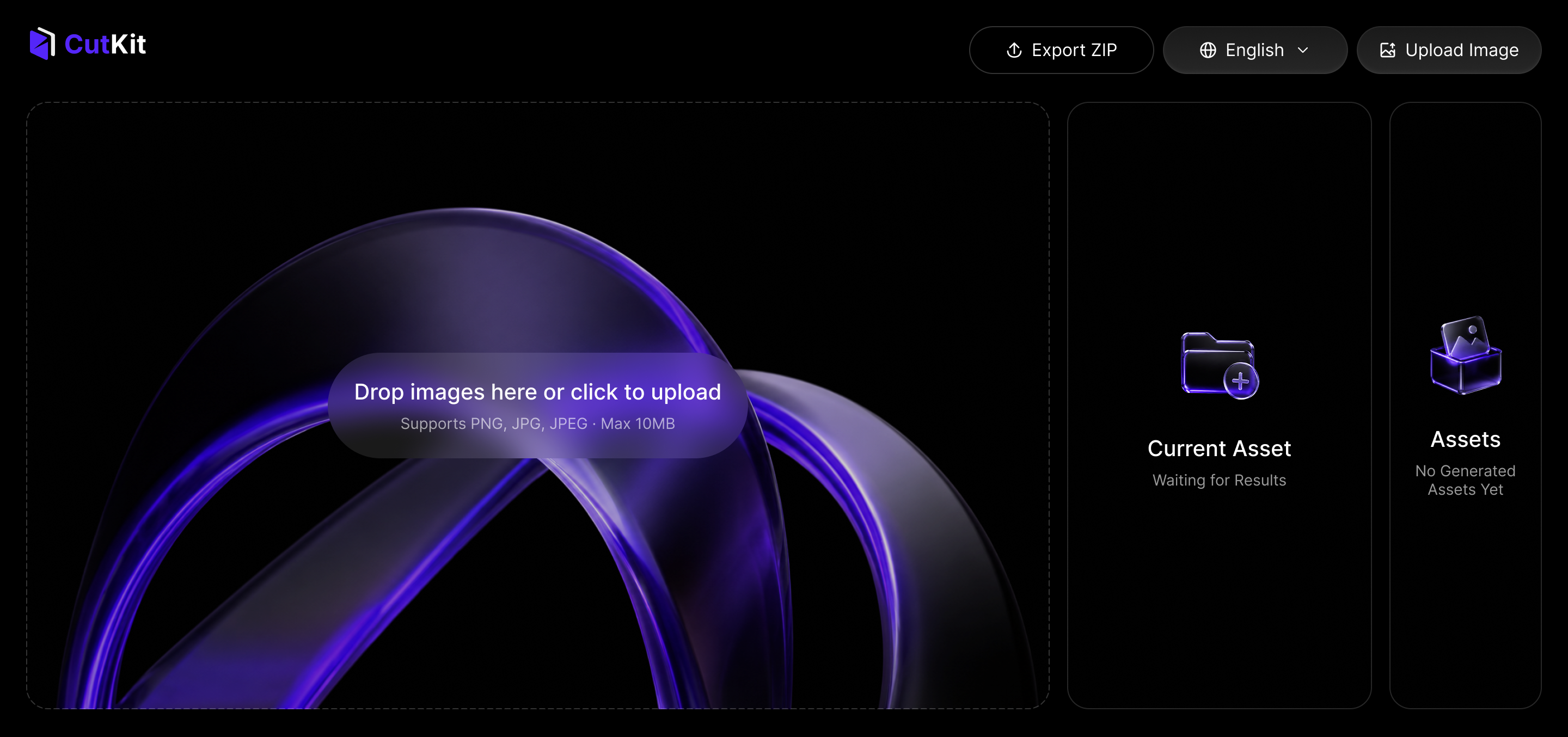
Upload Entry
Start from the source canvas
Before extraction, the workspace gives users a clear place to bring in source images.
Interactive Workbench
From canvas to export-ready assets
The screen stays focused on selection, asset review, and export decisions.
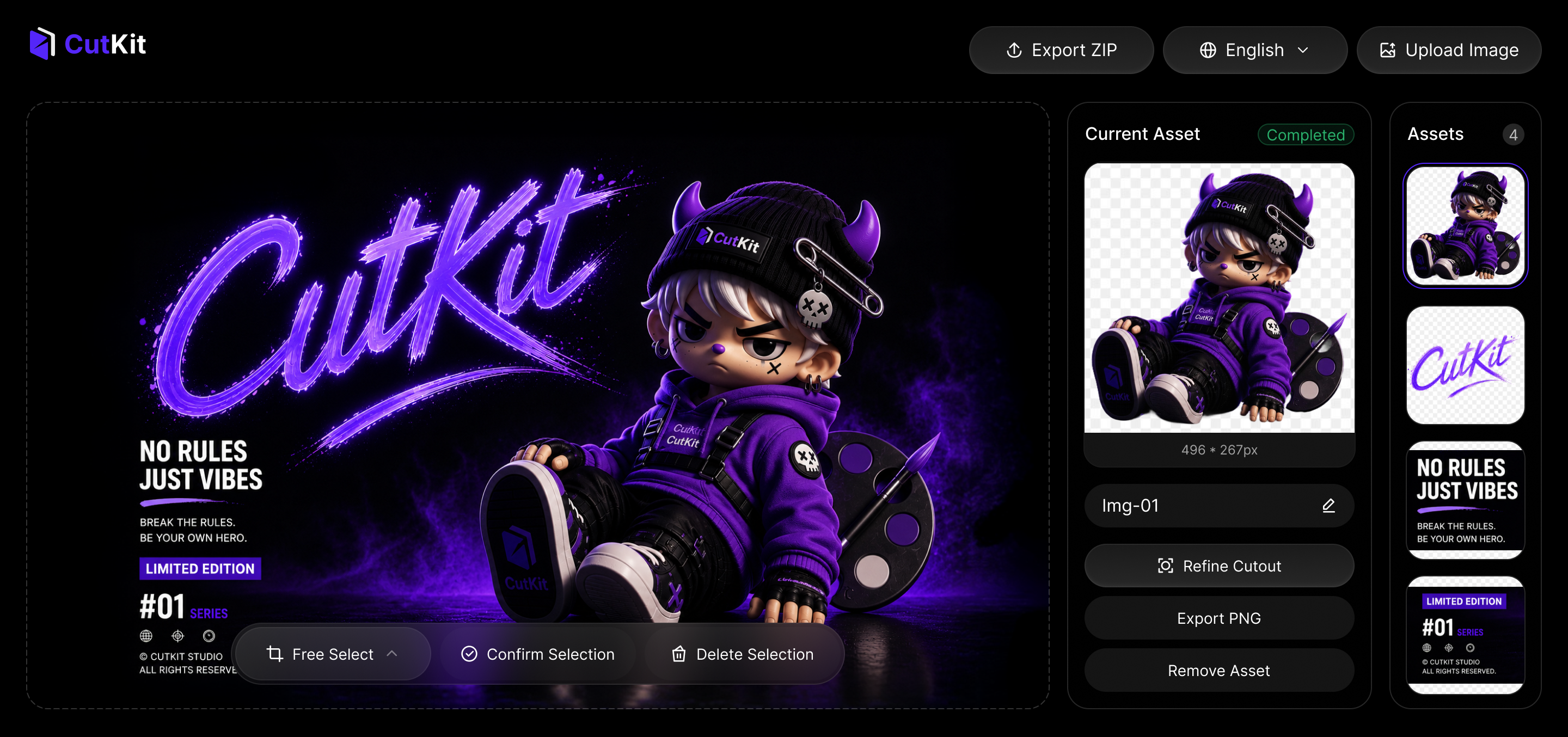
Infinite canvas
Zoom and pan help users inspect page elements before extracting them.
Selection tools
Multiple selection modes support different shapes and extraction scenarios.
Asset library
Extracted elements stay in a list for naming, checking, and batch export.
Compressed export
Batch export and compression are built into the same workflow.
What I Refined
Trade-offs
The prototype became clearer after focusing on selection scenarios, canvas control, and delivery output.
One selection mode is not enough.
I planned multiple selection tools so different UI elements can be captured in the most suitable way.
The workspace needed room to inspect details.
Zoom, pan, and canvas-style navigation make extraction feel like working on an open design surface, not a fixed upload panel.
Export needed to enter real delivery.
Batch export and compression reduce the need to download assets and process them again elsewhere.
Next Step
Asset Decomposition
Next, CutKit will decompose full pages, posters, or selected regions into independent editable assets.
One-click decomposition
Split a page, poster, or campaign image into independent reusable elements.
Regional batch split
Select one area and extract multiple elements inside it instead of cutting each object one by one.
Occlusion completion
Use AI completion to repair hidden or covered parts after elements are separated.